
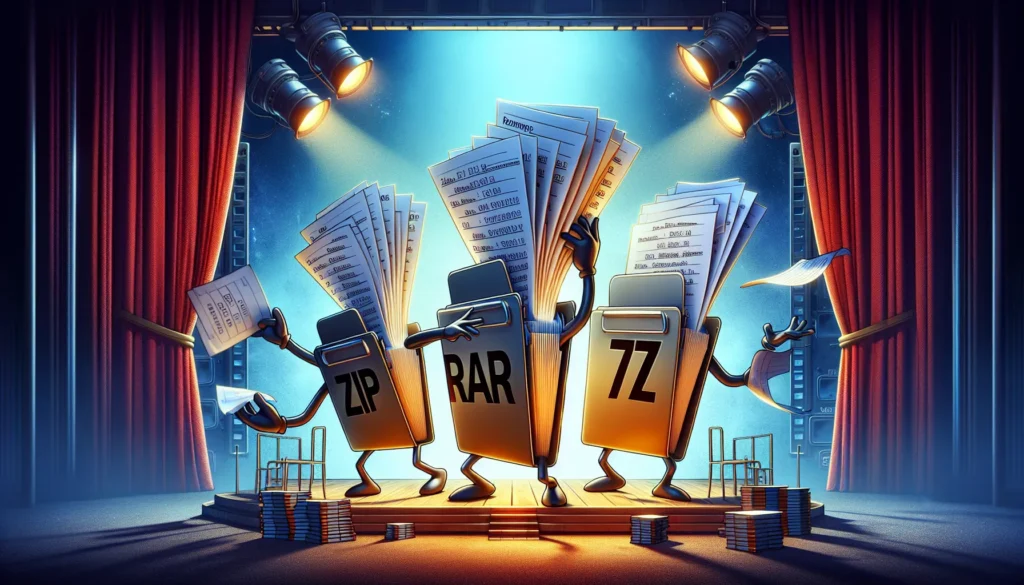
Compressing files is one of those skills everyone needs — yet nobody teaches. One day you’re trying to send a huge folder; the next, you’re staring at mysterious options like ZIP, RAR, and 7z wondering:
“Which one do I pick… and what do these settings mean?”
Good news: by the end of this guide, you’ll understand file compression like a pro. Whether you’re sending files to a client, archiving projects, or preparing uploads for FileSharer.io, compressing your files properly will save you time, space, and headaches.
Let’s unpack (and compress!) everything you need to know.
📦 1. Why Compress Files in the First Place?
Compression isn’t just about saving storage space — it’s about:
- Making large folders easier to send
- Keeping multiple files together
- Reducing upload and download times
- Preventing file corruption during transfer
- Preserving folder structure
- Making sharing cleaner and more professional
Instead of sending 42 loose files, you send one clean archive.
🗜️ 2. What Exactly Is File Compression? (Quick Explanation)
File compression works like this:
- Your computer analyzes your files
- It finds patterns and repeated data
- It removes redundancy
- It packages everything into one archive
- The result = same files, smaller size
Think of compression as vacuum-packing your digital files.
🧰 3. The Most Common Compression Formats (Explained Simply)
Let’s break down ZIP, RAR, and 7z — the big three.
ZIP — The Universal Format
ZIP is the most common and most compatible compression format.
Every operating system supports it: Windows, macOS, Linux, Android, and iOS.
When to Use ZIP
- Sending files to clients
- Sharing with non-technical users
- Cross-platform compatibility
- Uploading to FileSharer.io
Pros
- Universal support
- Easy to create
- No extra software needed
Cons
- Not the best compression ratio
- Larger archives compared to RAR/7z
ZIP = the “safe choice.”
RAR — Stronger Compression, Smaller Files
RAR often creates smaller archives than ZIP, making it great for large files.
When to Use RAR
- When you want smaller file sizes
- When using WinRAR or similar tools
- Archiving large projects
Pros
- Better compression than ZIP
- Supports recovery options
- Great for huge files
Cons
- Not universally supported
- Requires extra software to extract
RAR = smaller files, but less compatible.
7z — Maximum Compression Power
7z (from 7-Zip) offers the strongest compression of all three. It squeezes files extremely efficiently.
When to Use 7z
- Archiving massive project folders
- Saving storage space
- Sending giant RAW or video folders
Pros
- Best compression ratio
- Supports strong encryption
- Great for power users
Cons
- Requires dedicated software
- Some clients may not know how to open it
7z = power and efficiency for expert users.
⚙️ 4. Compression Level Settings (What They Actually Mean)
Most tools let you pick a compression level:
- Store (No Compression) – fastest, but no size reduction
- Fast – quick, slight compression
- Normal – balanced, recommended for everyday use
- Maximum or Ultra – slowest, but best compression
Pro Tip:
If you’re sending files quickly via FileSharer.io, use Normal.
If you’re archiving for long-term storage, use Maximum/Ultra.
📁 5. How to Compress Files Properly (Step-by-Step)
On Windows
- Right-click your file or folder
- Select Send to → Compressed (ZIP) folder
- Rename the ZIP file
Using 7-Zip (Windows)
- Install 7-Zip
- Right-click → 7-Zip → Add to Archive
- Choose ZIP, RAR, or 7z
- Pick compression level
- Click OK
On macOS
- Right-click file or folder
- Select Compress “filename”
- macOS creates a ZIP file automatically
On Linux
Use built-in tools or the zip/7z commands.
🔒 6. Add Password Protection (Optional, but Professional)
If you’re sending sensitive files:
- Add a password when creating ZIP/RAR/7z
- Share the password separately
This keeps your files secure, especially when sharing publicly accessible links.
🚀 7. Sending Compressed Files Through FileSharer.io
Once your archive is ready:
- Upload your ZIP, RAR, or 7z file
- Get a clean link
- Share it instantly
- Recipients download the exact original content
No quality loss, no changes, no broken folder structures.
FileSharer.io is perfect for:
- Large project folders
- RAW photo sets
- Video production files
- Design assets
- Software builds
- Multi-file packages
💡 8. When Should You Not Compress Files?
Compression isn’t always necessary.
Skip it when:
- The file is already compressed (MP4, MP3, JPG, PNG)
- You only have one file
- The file is extremely huge and compression won’t help
Some formats won’t shrink much no matter what you do.
🥇 Final Verdict: Which Format Should You Use?
Here’s the simplest way to choose — without tables:
- Use ZIP → For sharing with clients or general users
- Use RAR → When you need smaller file sizes and don’t mind requiring extraction software
- Use 7z → For maximum compression and tech-savvy recipients
No matter which you pick, compressing files properly makes sending them cleaner, safer, and more professional — especially when paired with FileSharer.io.