
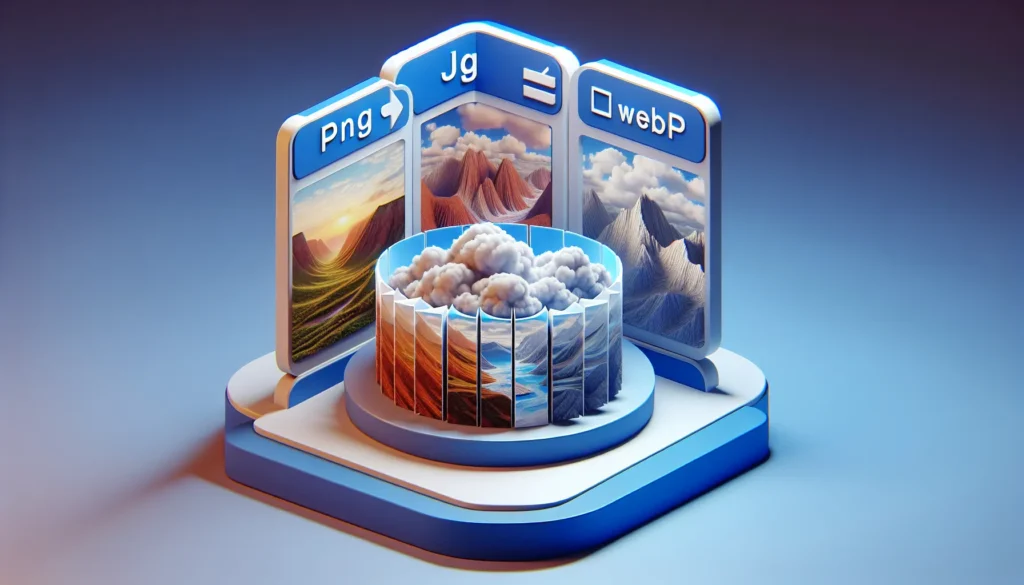
Converting images sounds simple… until you end up with a blurry JPG, a PNG that’s too large, or a WEBP file that refuses to upload anywhere. If you want clean, crisp images and smaller file sizes, choosing the right conversion method matters.
This guide explains how to switch between PNG, JPG, and WEBP — the three most common image formats — without losing quality or creating gigantic files.
Let’s keep your visuals looking sharp.
🖼️ 1. What’s the Difference Between PNG, JPG, and WEBP? (Quick Guide)
Understanding each format helps you convert them properly.
PNG (High Quality + Transparency)
- Lossless compression
- Supports transparent backgrounds
- Great for graphics, logos, UI assets
- Larger file size
JPG / JPEG (Small Size + Great for Photos)
- Compressed / lossy
- Great for photos
- Not ideal for text or graphics
- No transparency
WEBP (Modern + Best of Both Worlds)
- Smaller than JPG
- Higher quality than JPG
- Supports transparency like PNG
- Perfect for websites
WEBP is the newest and most efficient — but not fully supported everywhere yet.
🧪 2. How to Convert Without Losing Quality
Here’s the key rule:
Always convert from a higher-quality format to a lower one — never the other way around.
Meaning:
- PNG → JPG (okay, but some quality loss is expected)
- PNG → WEBP (great!)
- JPG → PNG (no quality improvement)
- JPG → WEBP (good compression, slightly improved look)
- WEBP → PNG (keeps quality)
If your original image is already compressed (like JPG), you cannot magically restore lost details.
🛠️ 3. Recommended Tools for High-Quality Conversion
Here are tools that preserve image quality well:
Online Tools
- Squoosh (Google)
- TinyPNG / TinyJPG
- Convertio
- CloudConvert
Desktop Software
- Photoshop
- GIMP
- Affinity Photo
- XnConvert
For Bulk Conversion
- XnConvert
- ImageMagick
- BatchPhoto
These options maintain color accuracy, resolution, transparency, and metadata when possible.
📸 4. How to Convert PNG → JPG Without Losing Too Much Quality
PNG is lossless; JPG is lossy.
Some quality loss is unavoidable, but you can minimize it.
Tips
- Use 100% JPG quality when saving
- Keep the original resolution
- Increase sharpening slightly if needed
- Avoid multiple conversions (PNG → JPG → JPG)
Only convert PNG to JPG when absolutely necessary (e.g., for smaller file size).
🌈 5. How to Convert JPG → PNG Without Making the File Huge
You won’t gain quality, but you can preserve the current quality.
When to convert JPG → PNG
- When you need transparency added later
- When editing heavily in Photoshop
- When exporting graphics
Tips
- Don’t upscale the image
- Use compression settings in your editor
- Keep the same pixel dimensions
PNG files will be larger but stable for editing.
💡 6. How to Convert Anything to WEBP for the Best Balance
WEBP is amazing for:
- Websites
- Blog graphics
- Thumbnails
- UI assets
- Large images where size matters
Best settings
- Quality 90%–95% for photos
- Lossless for logos or graphics
- Keep color profile intact
- Enable “preserve transparency”
WEBP gives you a high-quality image with much smaller size than JPG or PNG.
🧽 7. Watch Out for Background Transparency
- PNG supports transparency
- WEBP supports transparency
- JPG does not
If converting from PNG/WEBP → JPG, backgrounds will become solid (usually white).
If you want to keep transparency:
Convert to WEBP instead of JPG.
🗂️ 8. Don’t Re-Save or Convert the Same Image Repeatedly
If you do this:
- JPG → JPG → JPG → JPG
Each save degrades the image further.
Always convert from the original file or use lossless formats (PNG/WEBP lossless).
📤 9. How to Send High-Quality Images After Converting
Once you’ve converted your images properly, use a file-sharing tool that preserves quality.
Messaging apps will:
- Shrink the resolution
- Crush the colors
- Strip metadata
Email will:
- Compress attachments
- Reject large files
- Resize images
Tools like FileSharer.io ensure:
- No compression
- Full-quality images
- Fast delivery
- Easy sharing through a link
- No size limits
Perfect for sending converted images to clients, designers, or collaborators.
🥇 Final Tips to Keep Image Quality Perfect
Follow these best practices:
- Start with the highest-quality original
- Convert only once
- Use WEBP for best balance
- Use PNG for graphics
- Use JPG for photos
- Keep resolution the same
- Avoid re-editing compressed images
- Use professional tools (not random free apps)
With the right workflow, you can convert between PNG, JPG, and WEBP effortlessly without sacrificing detail or sharpness.